Journal your workday
The daily page that ties together what you did, who you met, how you felt, and what you promised — in about ninety seconds a day.
The journal is the home page of save brain power: one page per day, with everything that day attached to it. Days exist whether or not you write anything — meetings and synced work land on them by themselves — so “keeping a journal” mostly means glancing at a page that’s already half-written and adding the parts only you know.
1. Read the day, top to bottom
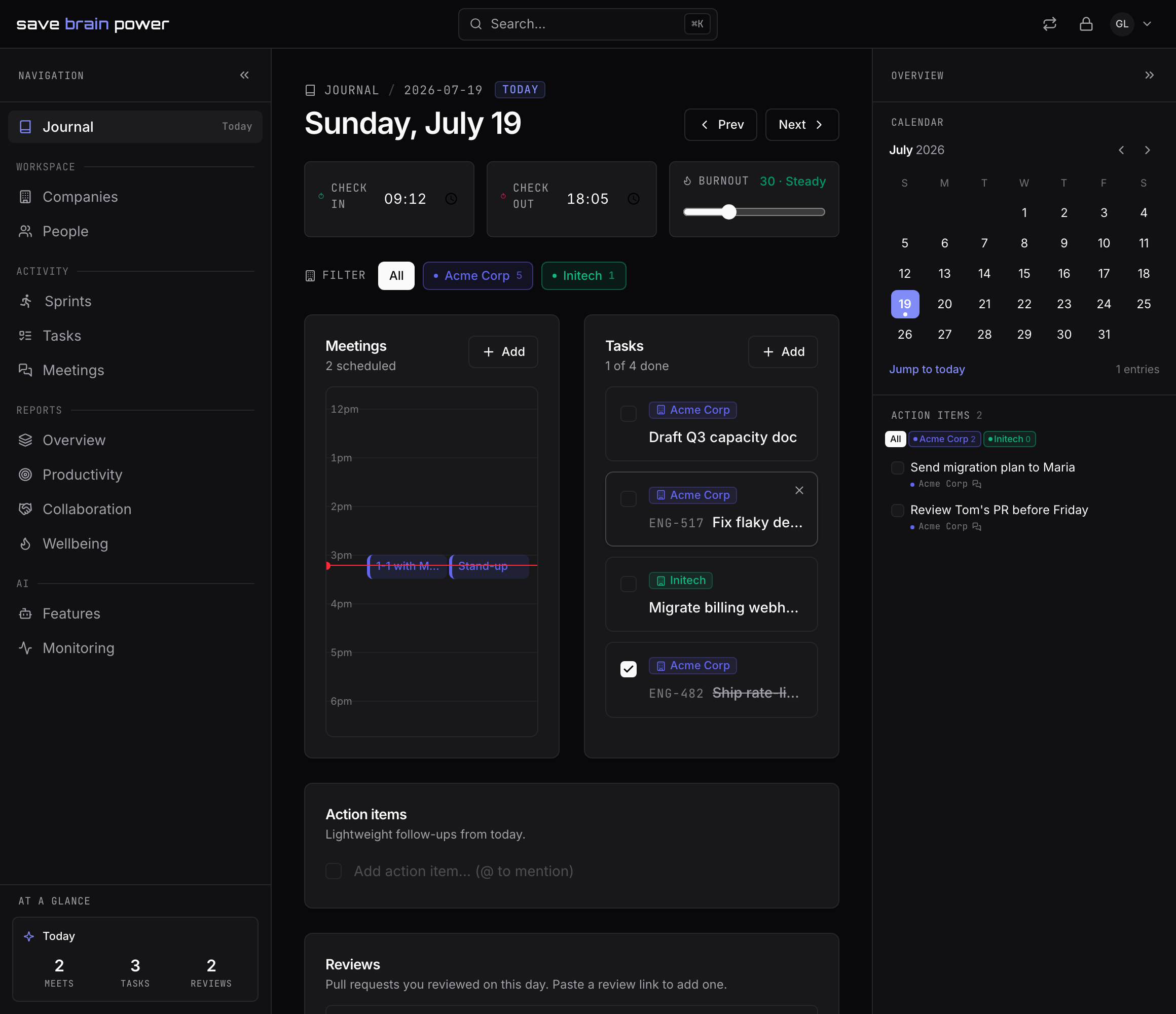
Today’s page opens with three wellbeing controls: check-in, check-out, and a burnout slider. They take two clicks a day and become the honest line chart in Reports → Wellbeing that tells you a rough month is becoming a rough quarter — before your body does.
Below them, meetings and tasks sit side by side: the day’s hour-by-hour timeline on the left, what you worked on to the right.
2. Attach the tasks you actually worked on
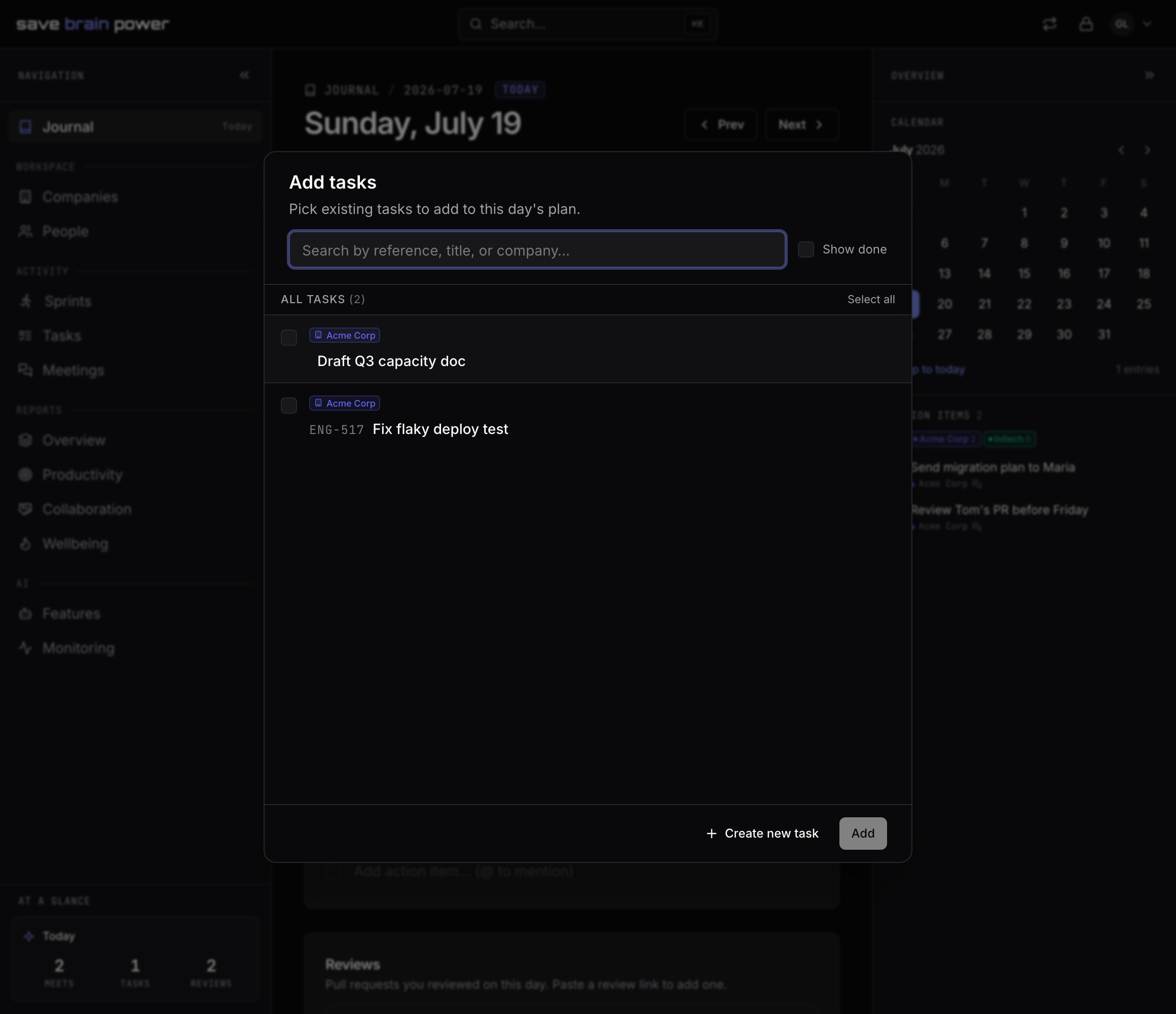
Hit + Add on the tasks card to attach existing tasks to the day. This is the difference between a to-do list and a journal: the question isn’t “what’s open?” but “what did I touch today?” — which is exactly what you’ll need at review time, standup, and every 1-1.
Checking a task off here marks it done everywhere.
3. Write the day’s notes, per company
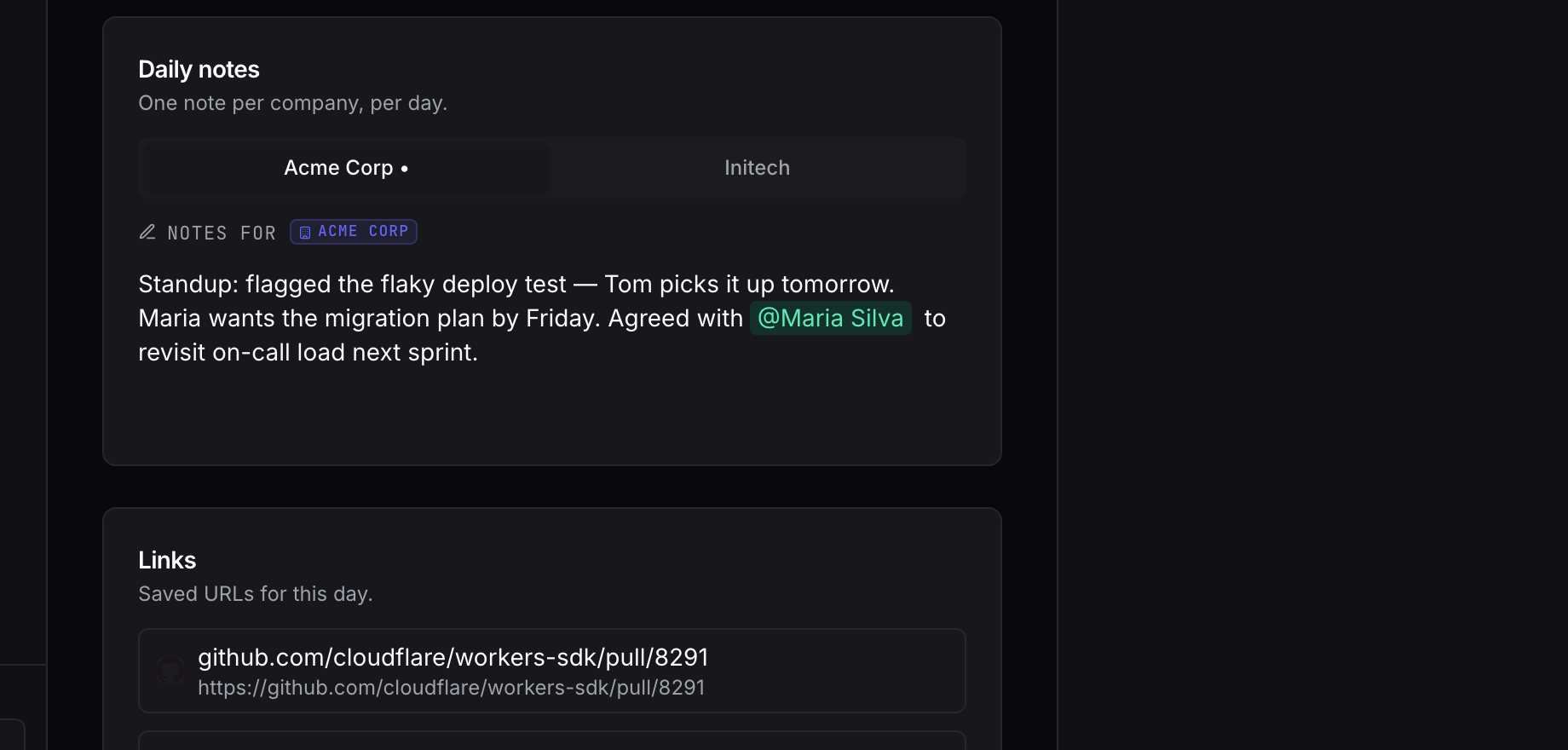
The Daily notes card keeps one note per company per day, in tabs. Decisions, hallway context, the thing your manager said in passing — write it where the day is, and it’s encrypted before it leaves your browser. Type @ to mention a person or task and the note becomes a backlink on their page.
4. Capture commitments and links
Two lightweight companions round out the day:
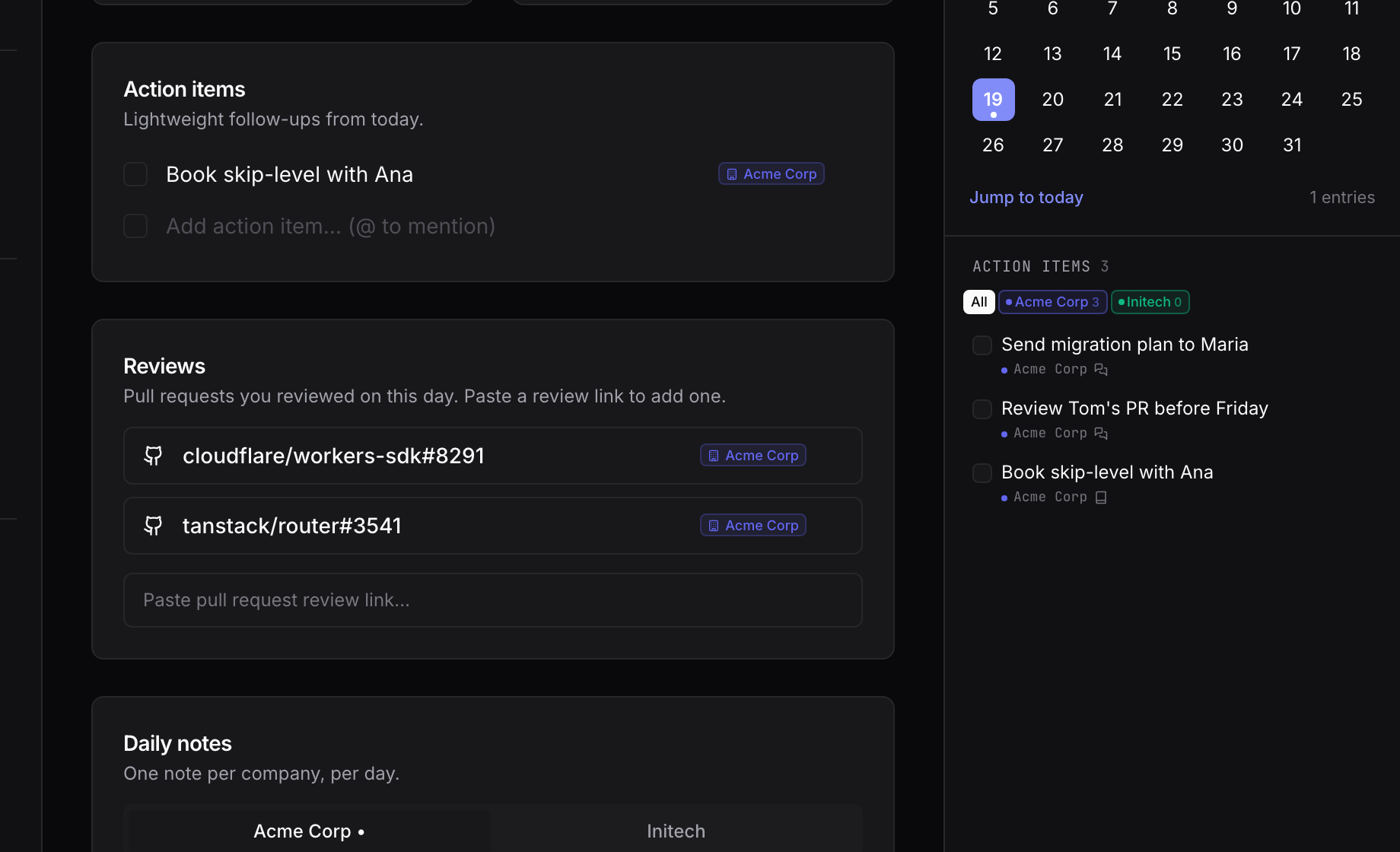
- Action items — small promises that don’t deserve a full task yet, on the day or inside a meeting. When one grows up, promote it to a real task; the link back to where it came from is kept.
- Links — the PR, the doc, the incident page. Paste a URL into the Links card and stop re-searching Slack for it.
Tip: navigate days with the ‹ › buttons or jump anywhere with the ⌘K palette. Past days are a record; future days are a plan — you can attach tasks and notes to both.
To make the journal write itself, connect your tools: GitHub and Linear.